'/%3E%3Cpath fill='%23DDE3FF' d='M54 17H14.5a4.5 4.5 0 0 0 0 9H54ZM32 36H14.5a4.5 4.5 0 0 0 0 9H32Z'/%3E%3Crect x='34.5' y='31.5' width='6.5' height='18' rx='3.25' fill='%23FFB547'/%3E%3C/svg%3E) HoldFn
Home
What goes online when you dictate, and what doesn’t
AI-assisted, editorially reviewed ·
“Runs on your Mac” is a claim you should be able to check. HoldFn transcribes your voice on your Mac, but it is not an offline-only app. It makes four kinds of network call, and the fourth only happens if you set it up. This note goes through all of them, what each one sends, and what never leaves the Mac. The legal version is the Datenschutzerklärung, and the transparency page has the same list as a table. Both are in German.
What stays on the Mac
Your recording stays in memory until it is text, and then HoldFn discards it. Speech recognition runs on your Mac, with the model you downloaded. There is no account, and we run no server that could receive your audio.
The text of your last take is kept on the Mac for 24 hours, readable only by your user account, so that a take that went nowhere can be recovered. You can switch that off under Dictation, and then it is deleted straight away. Whatever HoldFn puts on the clipboard stays on this Mac too: it is never offered to your iPhone or iPad through Universal Clipboard.
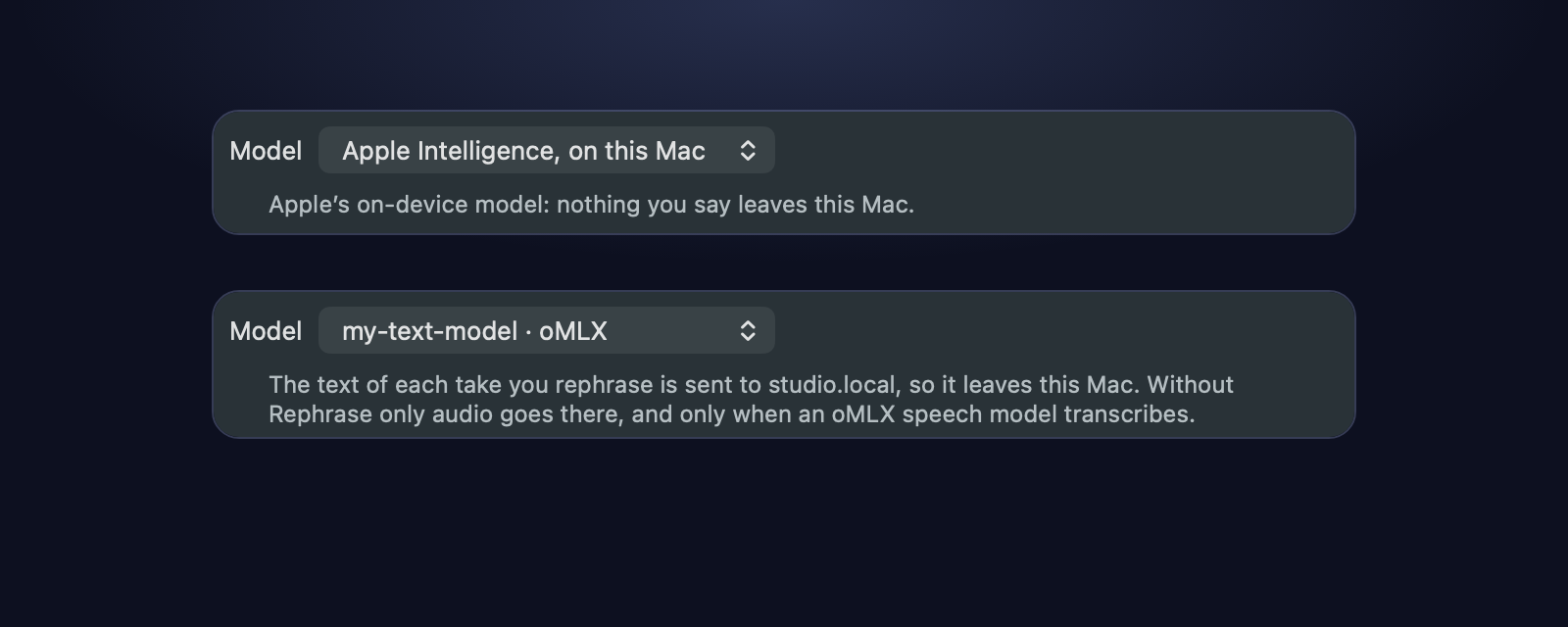
Rephrase, the Pro feature that tidies a take into a cleaner sentence or an email, uses Apple’s on-device model by default. That text stays on the Mac too.
The four calls
1. Downloading a speech model. When you set HoldFn up, it downloads a speech model from Hugging Face in the US, once per model. If Meetfacts already has the Parakeet model, HoldFn 1.2.22 and later copies it on your Mac instead and skips this download. The download is done by the open-source libraries HoldFn uses for speech recognition, directly between your Mac and Hugging Face. Hugging Face sees your IP address. It sees nothing from your recordings. If you already have a Hugging Face access token on this Mac, for example in ~/.cache/huggingface/token because you use their other tools, the libraries send it along, and Hugging Face can link the download to your account. HoldFn never creates a token itself.
2. Checking for updates. Once a day, HoldFn asks updates.holdfn.com whether there is a new version. Cloudflare serves that file and the updates for us. It sees your IP address and the app’s version. You can switch the check off under About › Updates. After that, HoldFn only looks when you choose Check for Updates.
3. Checking your licence, if you bought one. When you activate a licence, HoldFn registers this Mac with Polar, which sells HoldFn for us, and checks the licence again about once a week. It sends the licence key, our organisation’s ID at Polar, the app’s name and version, and a label for this Mac. The Licence pane fills that label in with your Mac’s name, which often contains a first name. Change it before you activate, or empty the field and HoldFn sends “Mac”. Polar also sees your IP address. Without a licence this call never happens: the free features and the 30-day trial need no check, no sign-up and no email address. Pro keeps working for 30 days without a successful check, so a week offline costs you nothing.
4. Your own oMLX server, only if you add one. You can point HoldFn at an oMLX server of your own. Then your recording goes there as an audio file, if you choose a speech model on that server. If you choose a text model there for Rephrase, the text of each take you rephrase goes there. Nothing is set up this way when you install HoldFn, and we don’t know the address you enter. HoldFn uses https, except for a server on this Mac itself. If you deliberately type an http:// address for another machine, your audio or text crosses the network unencrypted. The app warns you about that, but does not stop you.
For the licence check and for your own server, HoldFn does not follow redirects, so data only goes to the address it was meant for. None of the first three calls ever carries audio, transcripts, your vocabulary, or the names of the apps you dictate into.
Working offline
Once the speech model is on your Mac, dictation works with the Wi-Fi off. You need a connection to download the model, to activate a licence, and for the licence to be checked again within 30 days.
Checking it yourself
None of this has to be taken on trust. A network monitor on your Mac will show HoldFn’s connections, and each one should belong to one of the four calls above. If you see one that doesn’t, tell us at contact@holdfn.com. The transparency page treats a wrong claim like any other bug.